
Before you begin
Ensure you have completed the following tasks:
1. Import orders
You can choose to import orders automatically or manually. Starshipit recommends you import orders automatically to prevent orders from being missed.
Automatically import orders
- In your Starshipit account, go to Settings > Integrations.
- Under Import settings, tick the checkbox for Automatically import orders from all integrations (typically every 20 minutes).
- Click Save.
Manually import orders
Classic UI
- In your Starshipit account, select Orders.
- On the top right corner, click Import, then select:
- Import Orders. Select the integration that you want to import from, and the number of days you want to import the orders from.
- Upload to select and import a CSV file.
UI 2.0
- In your Starshipit account, select Orders.
- On the top right corner, click Import orders, then select:
- Import from integration. Select the integration that you want to import from, and the number of days you want to import the orders from.
- Import from CSV file to select and import a CSV file.
2. Correct invalid addresses
Batch correct invalid addresses
Classic UI
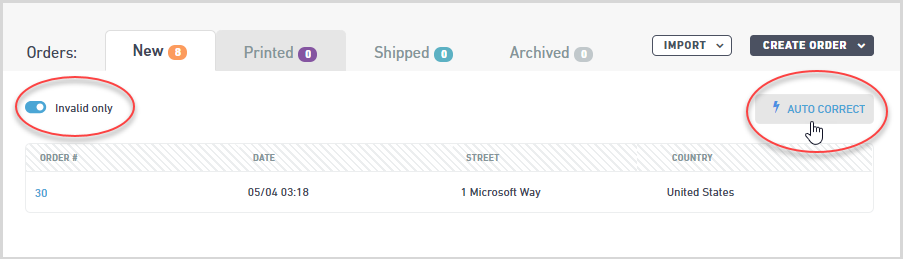
- Go to Orders, then enable the Invalid only toggle. This will filter the view to show orders with invalid addresses.
- Click Auto Correct. The changes proposed by Starshipit will be displayed. The Google API is used to validate the address.
- Click Save if the suggested modifications are correct.
UI 2.0
- Go to Orders, then click Check Addresses. This will take you to the Address Checker which filters orders with invalid addresses.
- Click Update(#) to apply the proposed changes. The Google API is used to validate the address.
Correct individual invalid addresses
Classic UI
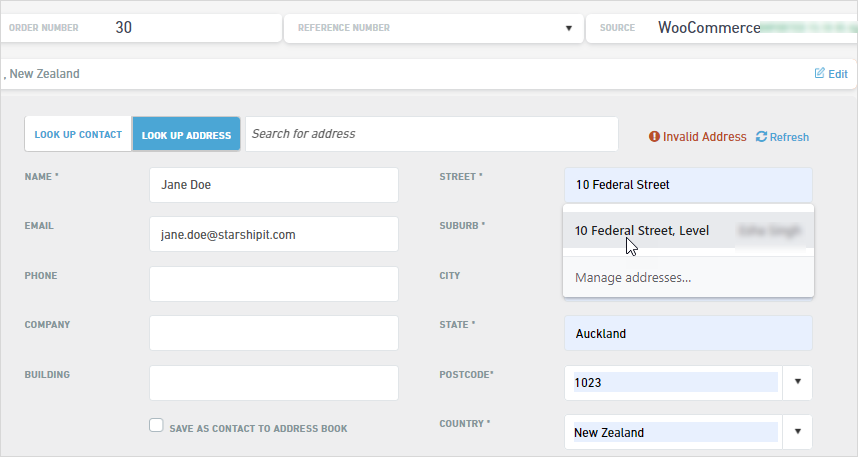
- Open the order with an invalid address. The Address Detail panel of the order dialogue will open.
- Start typing the correct address in the Address Lookup field and select the correct suggestion. Starshipit will complete the address form with the information selected.
UI 2.0
- In the Orders page, hover over the Customer column for the order with an invalid address, then click the pencil icon. The Receiver address panel of the order will open.
- Start typing the correct address in the Look Up Address field and select the correct suggestion. Starshipit will complete the address form with the information selected.
- Click Save.
3. Print labels
- Go to Orders, then click on the order number of the order that you would like to print a label for.
- The shipping panel of the order dialogue will open. From here you can edit the weight, select the package type or change the delivery services.
- Once you have confirmed all the information is correct, click Print Labels.
4. Manifest your orders
You must manifest your orders before the courier comes to pick them up. To do this:
- Go to Orders, then select the Printed tab.
- Click Manifest, then select Manifest All.
- Click Dispatch to confirm. The manifest report will be downloaded automatically
You can also download the report from the Manifest screen. From the sidebar, select Manifests, then click Download Report next to the order.