How to add a new user
- Login to Starshipit then navigate to Settings > Users.Please note that creating a new user is not possible while logged in as a child account that has access solely to that specific child. To create a user, please log in to the parent account.
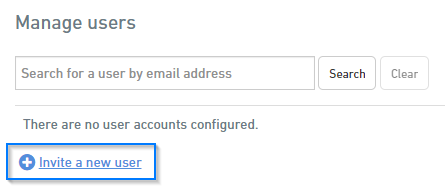
- Within the Manage Users section, click Invite a new user.
- Enter the user's email address.
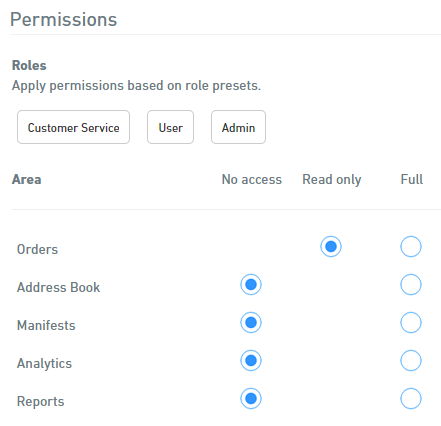
- Within the Permissions section you can:
- Define their access levels accordingly
- No access: The user will not be able to view or edit this area.
- Read only: The user only has a view of this area.
- Full: The user is able to read and edit this area.
- Select one of the predefined roles
- Customer Service: This role will only have visibility on Orders.
- User: This role will only have full access to Orders, Address Book and Manifests.
- Admin: This role has full access to all areas.
- Define their access levels accordingly
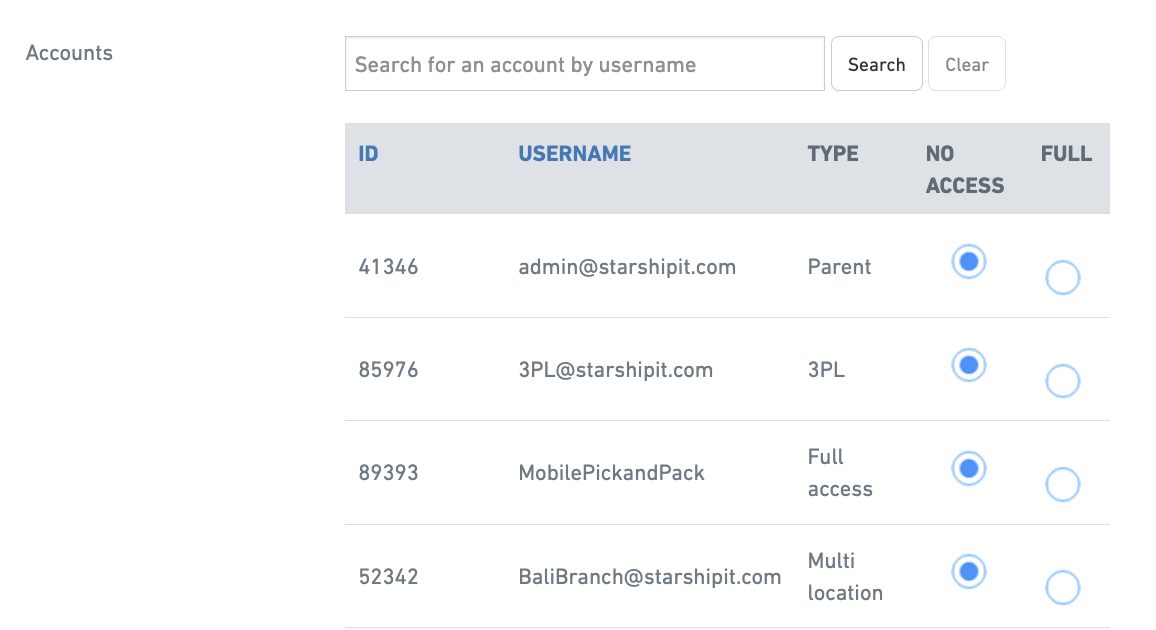
- Select which accounts the user should have access to.
- Click Save to confirm permissions. This will send an invitation email to the user.
- You can monitor the invitation's status in the Status column on the User Management page.
How to remove a user
- Login to Starshipit then navigate to Settings > Users.
- Select Edit next to the user's profile.

- Click on Delete user.
Reset a password
- Login to Starshipit then navigate to Settings > Users.
- Click Edit on the user's profile.

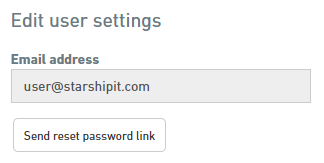
- Click Send reset password link to send the user a new password link email.