
Returns, packing slips, and shipping labels are coming soon.
How it works
The Brand hub allows users customise the following items:
- Store details (name and URL)
- Brand assets (logo, alignment and favicon)
- Brand colours
- Social media links
You can access the Brand hub by going to Starshipit > Settings > Brand hub.
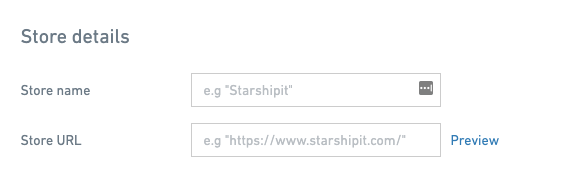
Store details
Change your store name and store URL using these fields. The Store URL will link the logo to the provided URL.
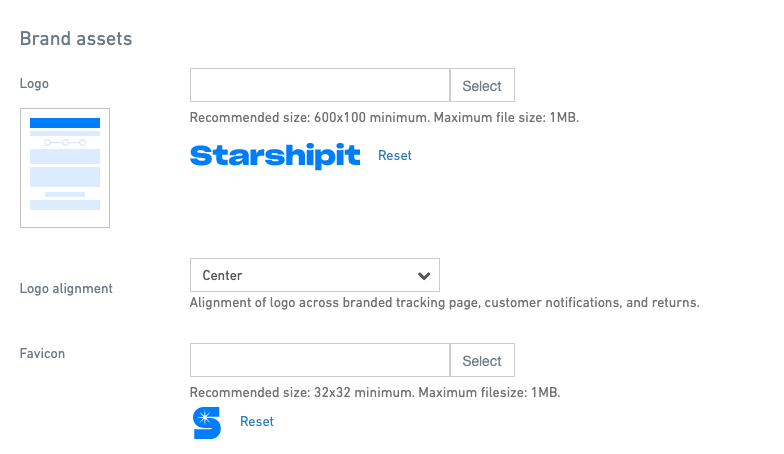
Brand assets
Upload and manage brand assets, which appear on your shipping notifications and branded tracking page.
You can upload your logo and choose how it aligns, and upload a favicon.
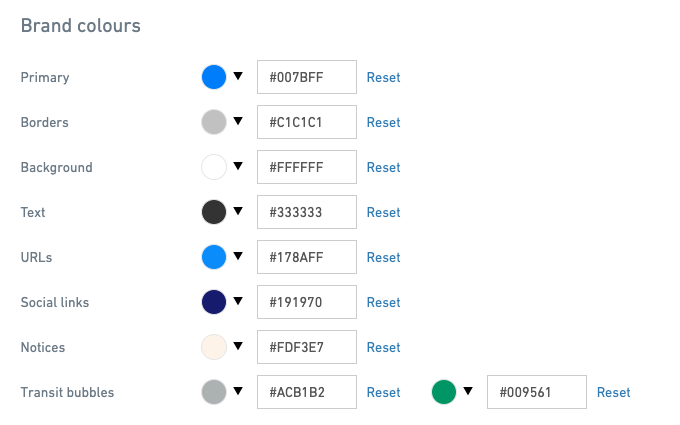
Brand colours
Use this section to manage the colour scheme used across the post purchase experience, including customer notifications and your branded tracking page. To change a colour, click the bubble or enter the colour code directly.
Social media links
Add and manage the social links shown across your post purchase experience. If you leave a field empty, the icon will not be displayed.
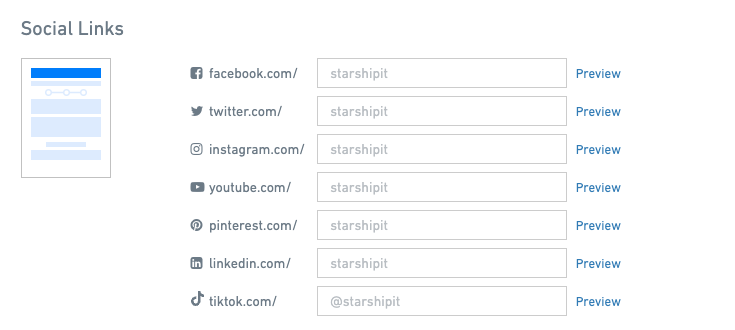
You can choose to show or hide social links for each part of the post-purchase experience using Display options.
