
Automating your reports to be sent directly to your email daily, weekly, or monthly saves time, provides timely insights, and makes it easier to distribute insights to relevant parties. Learn more about the types of reports you can generate in Generating Reports.
Set up scheduled reporting
- In Starshipit, navigate to the Reports section.
- From the top right of the screen, select the Schedule Report option.

- Tick the checkbox beside each report you would like to receive.
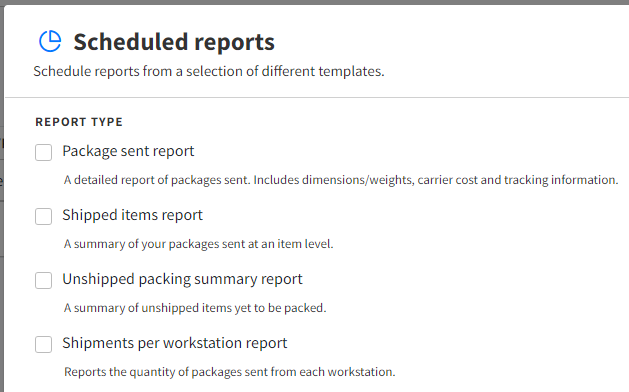
- Specify up to three emails to receive the reports in the Receivers field. Separate each email with a comma.
- Select the frequency for your reports (daily, weekly, or monthly).
- Choose whether you want to include child accounts and archived orders in your report.
- Click Save.
FAQs
The daily report is sent at 7pm UTC, the weekly report is sent 7pm Sunday UTC, and monthly reports are sent on the 1st of each calendar month.
To disable the reports, you can either untick the report option or remove your email from the list of recipients.
You can set up one of the email addresses to automatically forward the reports to any additional recipients from your email software:
The account number is included in both the report's subject line and the downloaded file name. For example:
- Subject line: Starshipit [Acct12345] Unshipped packing summary
- File name: UnshippedPackingSummary_Acct12345.csv