
How it works
- Log in to your Starshipit account.
- From the dashboard, navigate to the Workflows section on the left.
- Select the Packing Validation option from the list of options.
- Enter or scan the order number, then click Search.
- The packing validation screen will open displaying the list of products in the order.
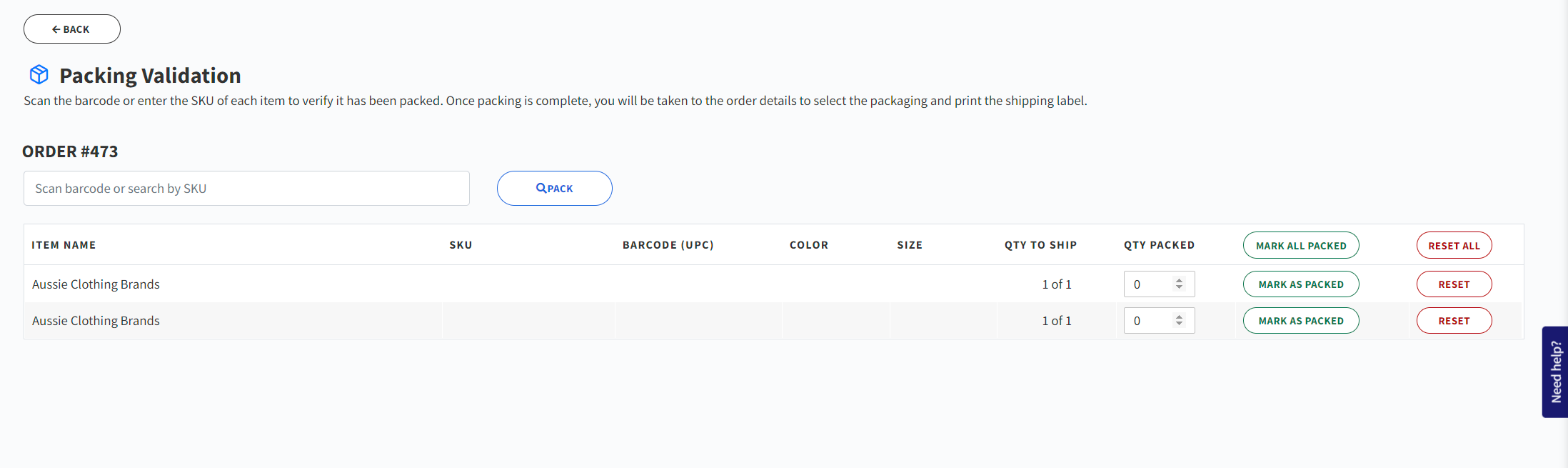
- Scan the barcode or enter the SKU of each picked product/item. If the scanned barcode matches an item in the order, we'll mark that product as packed.
- If you enter an item that is not in the order, you will be presented with an error on the screen.
- Repeat step 6 for each item until all items have been packed.
- The Complete Packing button will be enabled once you've scanned every product in the order to ensure you haven't missed anything.
- Click Complete Packing. This will redirect you to the order details page.
- Confirm the package and carrier/service selection.
- Click Print to complete the packing validation for the ordered items.
Packing Validation settings
You can configure Packing Validation to fit your workflow by going to Settings > Packing Validation.
Open orders with Packing Validation
Control how unshipped orders should open in the orders grid:
| Option | Description |
|---|---|
| Open the order details | Opens the default Starshipit order details page |
| Open the order with Packing Validation | Takes you directly to the packing validation screen |
Complete packing
Decide what happens when you click Complete Packing:
| Option | Description |
|---|---|
| Open the order details before printing the label | Allows you to make any changes to your packaging or carrier selection before printing |
| Print the label | Prints the label directly once packing has been completed |
Additional Options
Auto-complete Packing Validation: Enable this to automatically complete packing validation after the last item is scanned.
FAQs
Yes, it is possible to verify items without SKU and barcode. You can either increase the quantity manually or use the Mark as Packed button to mark all ordered quantities as packed.
Not every platform allows you to specify the barcode of your product. You can use the Starshipit product catalogue to upload all your barcodes so you can validate your packing even easier. For more information read our support guide.
If the wrong item has been scanned, an error message will be displayed to the packer. The error message will indicate that the scanned barcode does not match the product's barcode. You can then take corrective action to ensure that the correct item is scanned and packed. Along with seeing an error message you will also hear an audio notification that will alert you when an incorrect item has been scanned.
Yes, it is possible to access Packing Validation from within the Orders Grid. You can right click on an order and select Open with Packing Validation to open the order directly within Packing Validation.
You can also configure your settings so all orders opened from the Orders Grid are opened with Packing Validation. To do this, go to Settings > Packing Validation and under Open orders with Packing Validation, select Open the order with Packing Validation.
Yes, it is possible see when Packing Validation was used to pack a shipped order. To see this, open any shipped order and scroll down to the History section. If Packing Validation was used to pack the order you will see a Packing Validation entry that logs when Packing Validation was used, and which items were packed.