
If you experience an error that isn't outlined here, pleasereach out to our team.
Print Client vs Print Application
Starshipit Print Client
The Starshipit Print Client is designed to work in combination with the browser-based version of Starshipit. This setup allows you to use any modern web browser alongside the Print Client to manage and print your shipping labels and documents.
Starshipit Print Application
The Starshipit Print Application is a standalone desktop application. It includes its own integrated interface and has print settings configured independently, meaning it doesn’t require a browser to function.
These two printing options should not be used at the same time. Running both concurrently can lead to conflicts or printing issues.
A typical setup with Starshipit looks something like having a browser of your choice plus the Starshipit Print Client OR the Starshipit Print Application alone.
Check Print Client communication
-
Open the Print Client application on your computer.
-
Go to the Logs tab.
-
Look for an entry that says "Downloading label".
- If you see this entry: This confirms that your Starshipit account is communicating with the Print Client successfully. The issue may lie with the printer connection or printer settings (see Step 2).
- If you do NOT see this entry: It's likely that the Print Client is not connected properly. Make sure to verify the machine setup in your Starshipit account.
Verify Machine Name in Starshipit Settings
If your Starshipit account is not communicating with the Print Client:
-
Go to your Starshipit account settings.
-
Navigate to Settings > Printing > Advanced.
-
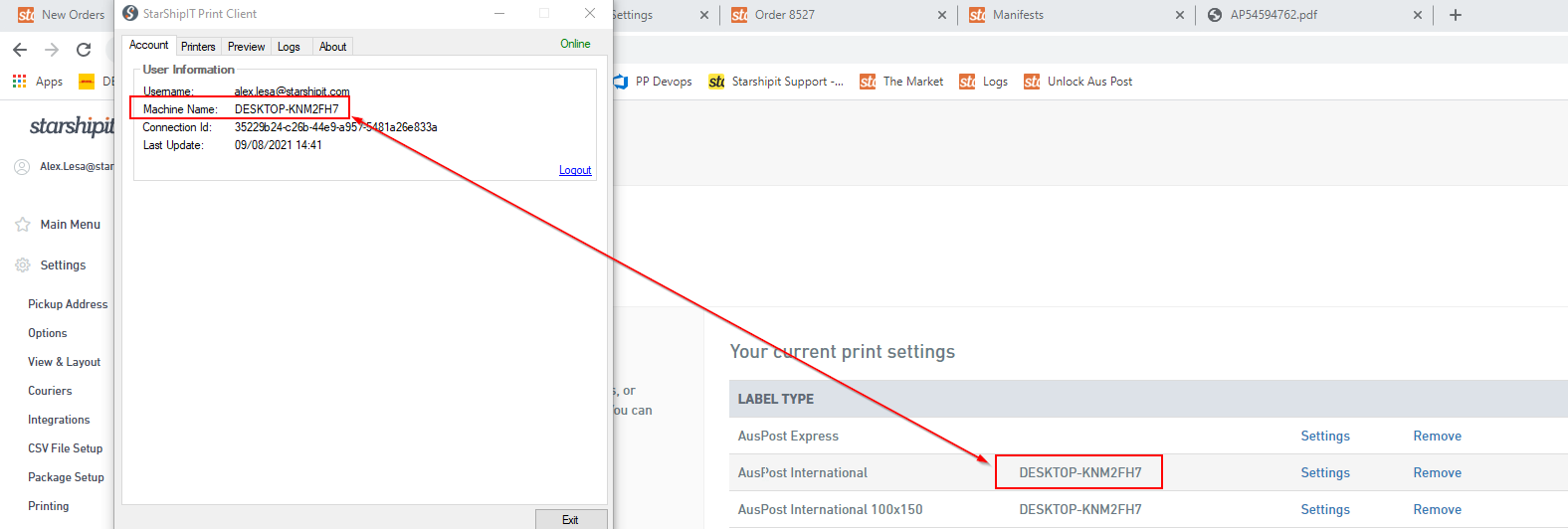
Reconfirm the M****achine name listed under your label types.
- This name must match the name of the computer running the Print Client.
Error: Your labels aren't coming out of the printer
Close and reopen the Print Client
-
Navigate to the taskbar (Windows), or menu bar (Mac)
-
Click the arrow icon, then select the Starshipit Print Client.
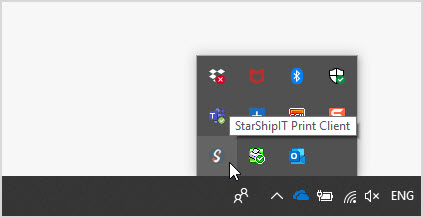
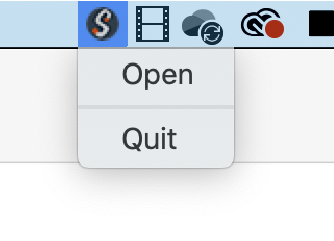
-
Right-click, then select Exit or Quit to close the Print Client.
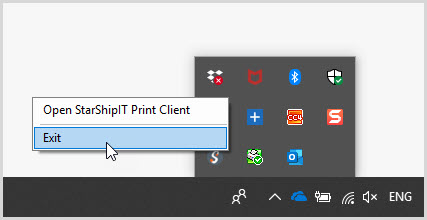
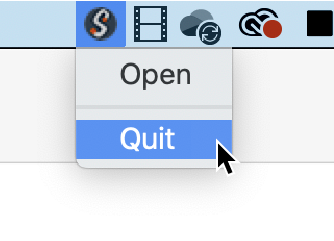
-
If the Print Client is frozen, end the process from your task manager. We also recommend that if your computer has been on for an extended period (over 24 hours), restart it.
-
Re-open the Starshipit Print Client. When you reopen the client, you will be asked to log back in with your authorisation code. To locate this, see here.
-
Once logged in again, check that the machine name selected in Settings > Printing > Advanced matches the machine name in the print client. For help on finding your machine name, see our guide on finding your computer name.
Error: Your account is using the wrong print settings
If you have a child account you may be finding that the printer you want to use is not selected. If that is the case then:
- Log out of Starshipit completely
- Log back into the child account directly, do not override the parent account
- Go to Settings > Printing > Advanced > Settings under a label type or Add new print settings and copy the authorisation code. For more information on finding the code, read this section.
- Log out of the print client:
- Right-click the icon in the taskbar
- Select Open Print Client
- Click the blue Logout option
- Log back in using the authorisation code from Step 3
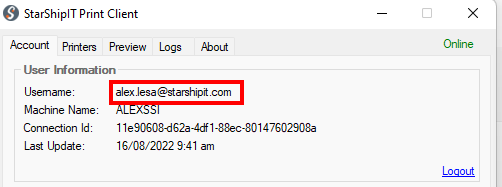
- If this has worked, the account tab should have the username of the child account, not the parent account
Error: I can't find the authorisation code
When you open the print client, you will be asked for the authorisation code. To locate this:
-
Log into Starshipit
-
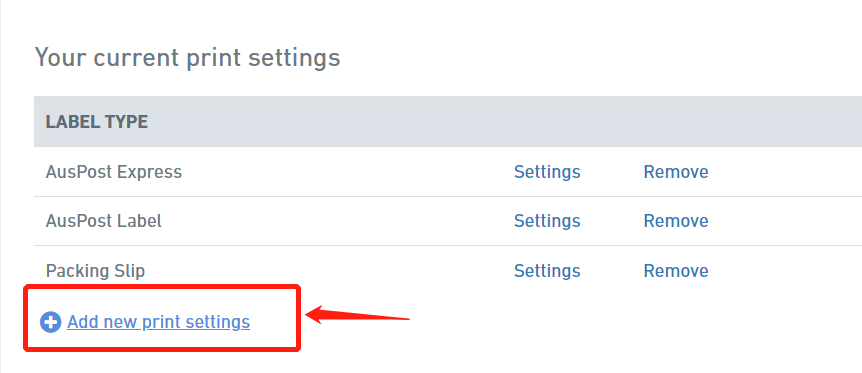
Go to Settings > Printing > Advanced > Settings under a label type or Add new print settings
-
You will then see the authorization code you can use to log into the app.
Error: Your Starshipit Print Client is cutting out
As the Print Client is a legacy application, we suggest upgrading to the Print App to resolve any connectivity issues.