
This guide will help you set up your default printer settings so that labels print at the correct size of 4x6" (100x150mm). For the purposes of this guide, we will be using a DYMO printer, however the CUPS steps should apply for any thermal printer.
Before you begin, please ensure you have already installed the printer driver software on your Mac computer.
How it works
- Check that CUPS is running on your Mac OS
To verify that CUPS is running open your web browser and paste the following into the address bar: http://localhost:631/printers- If you encounter no error, then you have verified CUPS is running
- If you encounter a "Web Interface is Disabled" error:
-
Open your Terminal Application on your Mac Finder > Applications > Utilities
-
Type the text below in the terminal and click enter:
cupsctl WebInterface=yes -
Type the text below in the terminal and click enter:
cupsctl -
If it shows with an entry stating "WebInterface=yes" then it is now enabled
-
- Navigate to WebInterface
- Open your web browser and paste the following into the address bar: http://localhost:631/printers
- Select your DYMO_Labelwriter_4XL printer in the list that shows.
- After selecting the printer you will be presented with a summary. From here, select Set Default Optionsin the dropdown.:**
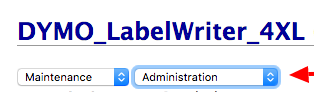 **
** - You will be presented with a new screen that has the option Media Size.
- Change this option to the correct paper size for your DYMO, this is usually 4x6"(100x150mm).
- Then select Set Default Options.
- You may be presented with an "Authentication Required" screen, enter your computer's username and password and Log In.
Now, when you print with your DYMO LabelWriter 4XL, the labels should be in the correct format.
If the 100x150 size does not show under Media Size you may need to download and install thelatest Dymo softwareunder The Latest Software & Drivers for all Label Writers and Label Manager,then remove and re-add your printer.