
An updated experience is rolling out
We’re moving customers using UI 2.0 to an updated experience that keeps familiar shipping workflows while delivering faster, more responsive performance. The migration is already underway, and UI 2.0 will no longer be available once it is complete.
You don’t need to take any action. We’ll move your account as part of the rollout. To move sooner, visit next.starshipit.com, go to Settings > Interface, set UI version to New UI and New UI version to UI 2.5 (recommended), then click Save. Classic UI users are not included in this migration.
Alongside improved performance, the updated interface includes several practical improvements.
What’s new?
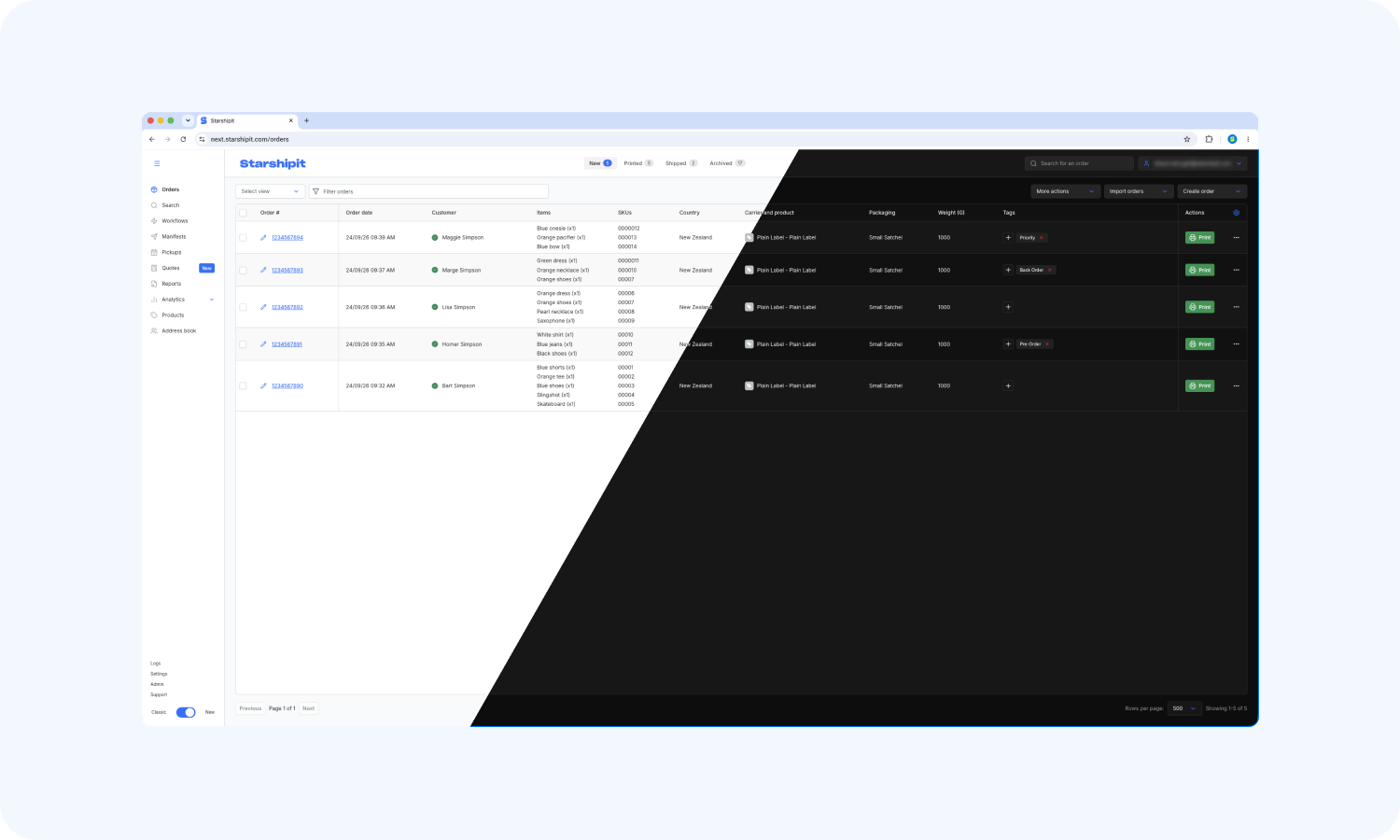
Personalise your workspace
- Choose light or dark mode and adjust zoom from the user menu in the top-right corner.
- Hide menu items you don’t need, choose a saved view to open in the Orders Grid by default, and manage the optional Enter-to-print shortcut from Order details in Settings > Interface.
- Choose up to 500 orders per page from the page-size control at the bottom of the Orders grid.
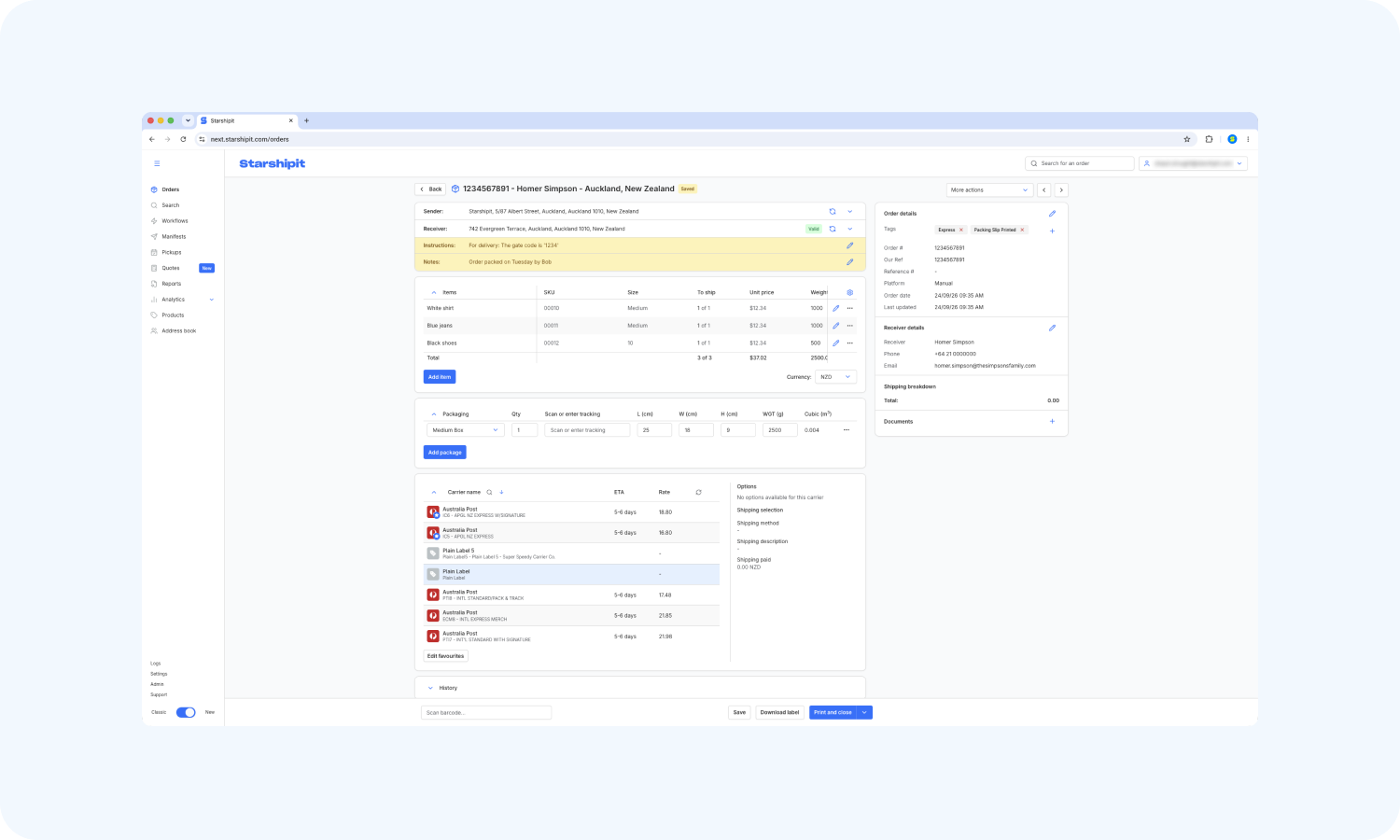
Manage orders more efficiently
- Review key information, including carriers and rates, higher on the Order details page with less scrolling. Collapse Items and Packages when you don’t need them.
- See the order ID in your browser tab when working across multiple orders.
- When an address is invalid, select Correct address from Order details to review suggested matches, search for an address, and apply a correction.
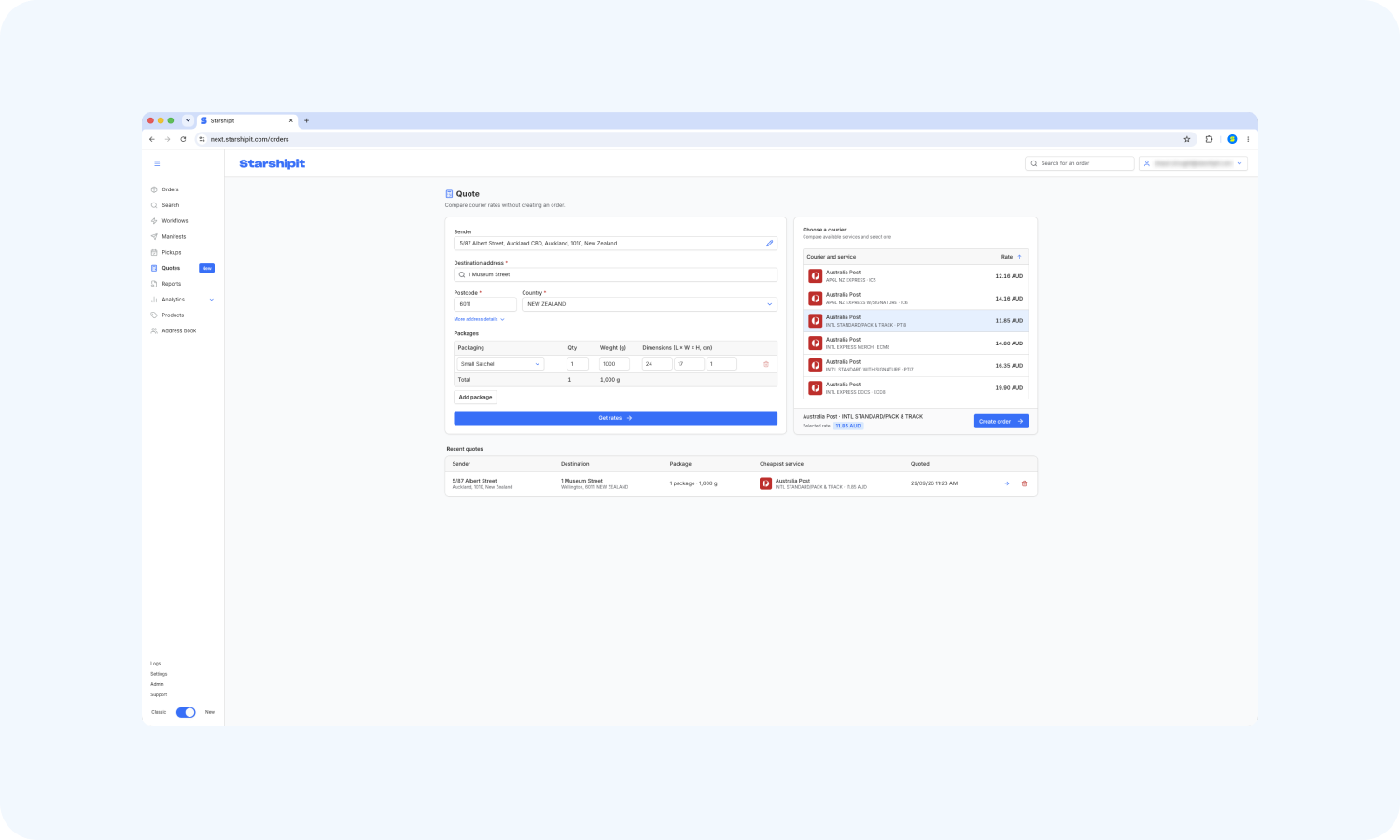
Compare carrier rates before creating an order, and more
- Open Quotes from the main navigation to compare carrier rates before creating an order.
- Create sample orders from the Orders grid by selecting Import orders > Load test orders, so you can test or demonstrate your order and printing workflows without using live orders.
- Reorder rules by dragging them or using keyboard controls in Settings > Rules.
- Pages adapt more effectively across different screen sizes.
- Search for packing slip and packing summary variables, then hover over them to see what they do.
- Find couriers, integrations, report types, and more quickly with search, instead of scrolling through long lists.
What’s changed?
Some familiar controls have moved to make them easier to find and manage:
- Column order is now managed from the column options menu within the Orders grid, rather than by dragging columns directly in the grid. Your selected columns from UI 2.0 won’t carry over, so you’ll need to set them up again after migration.
- Choosing between Compact and Expanded Orders grid layouts has moved to Settings > Interface. Compact shows each order on one line, while Expanded separates items, SKUs, and bin locations across multiple lines.
If you need help after moving to the updated interface, contact our friendly support team.